Academy › AI-Assisted KDP Books › Lesson 5
Trim size, bleed and layout
Set trim size and margins correctly and size your cover with bleed using the official KDP templates. · 8 min read
Layout mistakes are cheap to avoid and expensive to find after printing. Use KDP’s templates and calculators rather than guessing.
What you will build
A correctly sized interior file and cover file, checked against KDP’s tools.
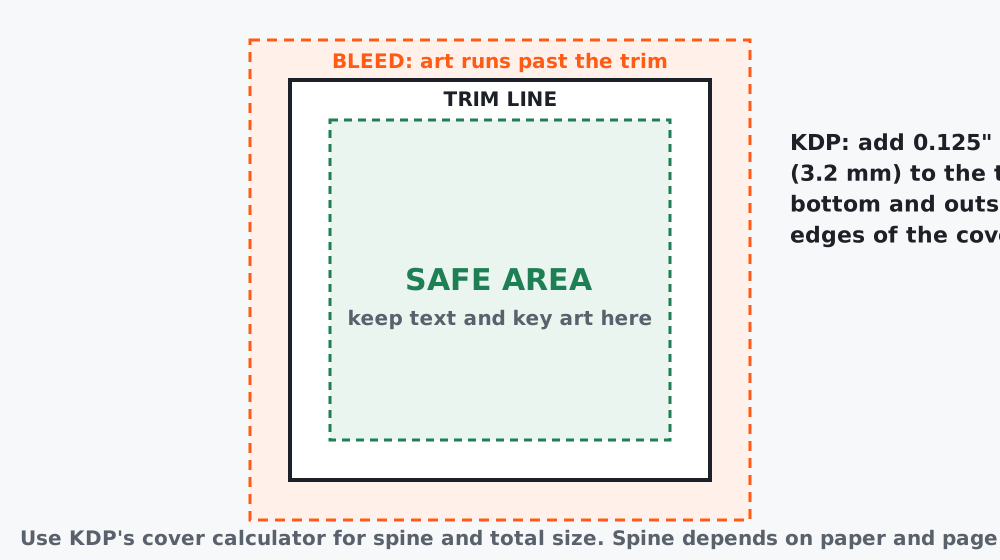 Figure 1. Bleed is art that runs past the trim so there is no white edge after cutting.
What KDP says
For a paperback cover, KDP’s guidance is to size the cover file with bleed by adding 0.125 inches (3.2 mm) to the top, bottom and outside edges. KDP provides templates and a cover calculator: after you enter ink and paper choices, trim size and page count, it generates the layout, including the spine and total size. See KDP’s help on creating a paperback cover.
Spine width depends on paper type and page count, so do not set it until your page count is final.
Step 1: Choose the trim size
Common sizes are offered in KDP’s setup. Choose by the reader’s use: a workbook people write in usually wants a larger page than a pocket journal. Larger pages cost more to print, so check the effect on your price (see royalties and pricing).
Step 2: Set margins and bleed for the interior
Read KDP’s help on trim size, bleed and margins for your page count: the minimum margins depend on the number of pages and whether pages have bleed. Keep text and key artwork well inside the safe area. If images run to the page edge, use a bleed-enabled setup.
Step 3: Use the templates
- Download the template or calculator output for your trim size, paper and page count.
- Build your cover on it; keep text out of the bleed and clear of the spine fold.
- Export the cover and interior as the formats KDP accepts and check the current file requirements on KDP.
Step 4: Check embedded fonts and image resolution
- Embed fonts in the PDF or outline text.
- Use images with enough resolution for print at their final size (print generally needs more than screens).
- Avoid very thin lines that may print faintly.
Step 5: Preview before you order
Use KDP’s online previewer to look for content outside the margins, text too near the edge or in the gutter, and low-resolution warnings. Then order a proof copy to check how it looks and feels in hand before you launch.
Worked example
A coloring-book author found that the images nearest the spine lost their left edge into the gutter. Increasing the inside margin by a small amount and reducing the artwork’s width by the same amount fixed every page. The proof copy confirmed it.
Common mistakes
- Setting spine width before the page count is final.
- Placing important text inside the bleed or near the spine.
- Skipping the proof copy.
Checklist
- Trim size chosen with cost in mind
- Margins and bleed set per KDP’s guidance for the page count
- Cover built on the calculator’s layout with 0.125” bleed
- Previewer clean, proof copy ordered