Academy › AI-Assisted KDP Books › Lesson 7
Cover and preview
Brief a cover that works at thumbnail size, then check how the book looks in the previewer. · 8 min read
Buyers see your cover as a thumbnail first. If it is not clear at that size, nothing else matters.
What you will build
A cover brief, a thumbnail test and a preview checklist.
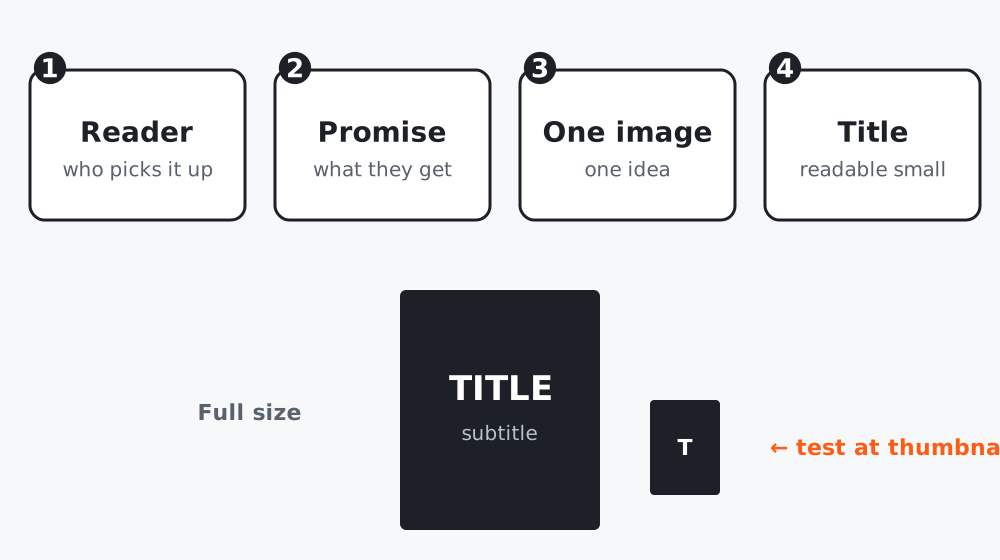 Figure 1. One idea, big readable title, tested small.
Step 1: Write the cover brief
Reader: [who picks it up]
Promise: [what they get, in 6 words]
One image: [a single clear subject]
Title: [exact words]; Subtitle: [exact words]
Mood: [2 words]
Must avoid: [clutter, small text, brand or character likeness]
Our cover design brief guide goes through each part in detail.
Step 2: Use AI for options, not for the final text
AI image tools may garble words. Generate the image without text, then place the title yourself in your layout tool. That keeps spelling exact and fonts consistent.
Suggest 5 cover concepts for this book using one image each. For each:
the subject, the main color, and the title placement. Keep concepts simple
enough to read at 100 pixels wide. Avoid real brands and characters.
Step 3: The thumbnail test
- Export the cover at about 100 pixels wide.
- Look from arm’s length or across the room.
- Ask: Can I read the title? Can I tell what it is? Does it look different from the others?
Compare against the first page of results for your niche. You want to look like you belong in the category but not like a copy.
Step 4: Put the cover on the template
Use KDP’s calculator or template (lesson 5) with the correct page count, keep text inside the safe area, and add the barcode area as the template shows.
Step 5: Preview the whole listing
Use KDP’s previewer on the final files. Then view the listing as a buyer: the cover, the first lines of the description and the “look inside” pages. The first pages should tell the buyer what they get without effort.
Worked example
A children’s book cover used a delicate script title. At thumbnail size it vanished. Switching to a heavy rounded font and increasing the title size by a third kept the same illustration and made the title readable at 100 pixels.
Common mistakes
- Letting the image tool render the title.
- Using many small elements.
- Never testing at thumbnail size.
Checklist
- Brief written with one image and exact title
- Title added in layout, not generated
- Thumbnail test passed
- Previewer and listing reviewed as a buyer