Academy › Automation Marketing with Claude › Lesson 7
Scheduled workflows with a human approval step
Run a weekly report on a schedule that drafts, but never sends without approval. · 9 min read
A workflow you have to remember to run is not automation. Scheduling makes it recurring, and an approval step keeps you in control.
What you will build
A weekly marketing summary that is gathered, summarized and drafted on a schedule, then sent only after a human approves.
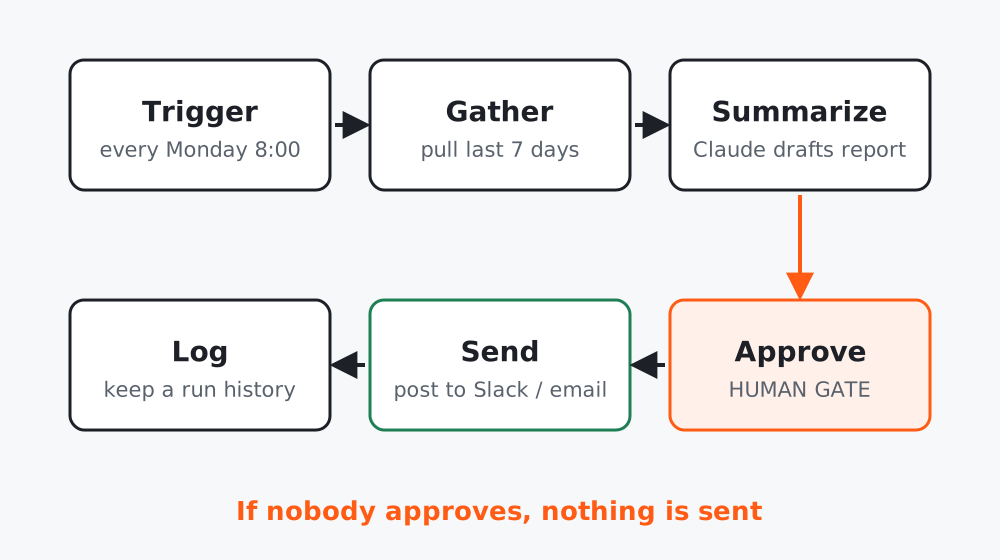 Figure 1. The schedule produces a draft. Nothing is sent until a person approves.
Pick the right scheduling option
Claude Code offers three ways to run prompts on a schedule: cloud routines, desktop scheduled tasks and the in-session /loop command. They differ in where they run, whether your machine must be on, and how permissions work. Read the current comparison in the official docs, Run prompts on a schedule, and the Routines page for cloud runs. Routines are labelled as a research preview, so behavior and limits may change, and they are set up through Claude Code with a paid plan and a connected repository, so check the requirements on that page before you plan around them. If that is more setup than you need, start with a simple weekly reminder and run the same prompt by hand.
An important detail from that comparison: cloud tasks run autonomously with no permission prompts. That is why this lesson’s design makes the task produce a draft, not an action.
Step 1: Write the task as a prompt
Every Monday, prepare the weekly marketing summary.
1. Read the "Weekly metrics" sheet for the last 7 days.
2. Write a summary under 200 words: what changed, the two numbers that
   matter, and one recommendation. Use plain language.
3. Save it as a draft in the "Weekly summaries" doc and post the link to
   the #marketing channel for approval.
Rules: do not send emails. Do not edit the sheet. If data is missing,
say what is missing instead of estimating.
Step 2: Set the schedule and access
Choose the option that fits (for example a weekly schedule), remove every connector the task does not need (all connected connectors may be included by default), and test with a manual run before you trust the schedule.
Step 3: Add the approval step
The approval is a human action outside the automation: read the draft, fix it, and send it yourself. If you want a record, ask the task to add a line to a “Run log” sheet with the date, the source ranges and the link.
Step 4: Handle failures
Add one more rule to the prompt: “If any step fails, post a one-line error to the channel and stop.” A silent failure is worse than a loud one.
Worked example
A two-person team scheduled a Monday summary. In week three the source sheet was empty after a form change. Because the prompt said to report missing data, the channel got “No rows found for last 7 days” instead of an invented summary.
Common mistakes
- Letting the scheduled task send or publish.
- No test run before the first scheduled run.
- Not logging runs, then not knowing why a week is missing.
Checklist
- Task prompt includes rules and failure behavior
- Manual test run passed
- Output is a draft, not an action
- Run log exists