Academy › Vibe Coding for Non-Developers › Lesson 7
Make it look like a product
Brief the design the way you briefed the features, check it on a phone, and run an accessibility pass before anyone sees it. · 8 min read
A working ugly page is a milestone. A working page that looks like someone cared is what people trust with their email. The gap is smaller than it looks, if you brief it properly.
What you will build
Your project styled from a short design brief, checked on a real phone, and passing a basic accessibility review.
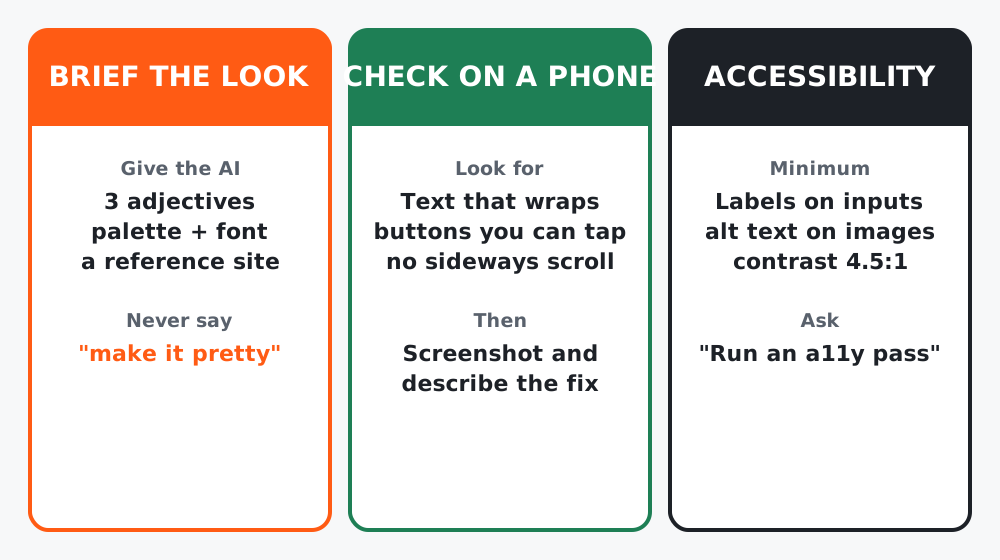 Figure 1. “Make it pretty” is not a brief. These three cards are.
Step 1: Write a design brief
Tools are good at style when given constraints and terrible when given adjectives alone. Give both:
Restyle the page using these constraints. Do not change any behaviour.
Feel: [3 adjectives, e.g. calm, confident, editorial]
Reference: [one site whose look you like, and what you like about it]
Palette: background [hex], text [hex], one accent [hex]
Type: one font for headings, one for body (or a system font)
Layout: single column, max width about 640px, generous spacing
Must keep: [anything already good]
Use a well-known CSS approach (Tailwind or plain CSS) and keep it in
one place so I can tweak it later.
If you have no palette, ask for three options with hex codes and pick one. Do not iterate on colour for an hour; pick and move on.
Step 2: Check it on a phone
Open the local URL on your phone (ask the tool how; it usually means using your computer’s network address) or shrink the browser window to 375 pixels wide. Look for:
- Text that wraps badly or overflows
- Buttons too small to tap, or too close together
- Anything that scrolls sideways
- The form being below the fold with no reason to scroll
Then take a screenshot and feed it back with words:
On a 375px wide screen: the headline wraps to four lines, and the
submit button is below the fold. Shorten the headline to two lines
and move the form above the benefits.
Most tools accept the screenshot itself too. Words plus picture beats either alone.
Step 3: The accessibility pass
Do an accessibility pass on this page: every input has a visible label,
every image has alt text, colour contrast is at least 4.5:1 for text,
the page works with keyboard only, and focus is visible. List what you
changed and anything you could not fix.
This is not a legal checklist. It is the minimum that makes the page work for more people and, as a side effect, usually makes it look cleaner.
Step 4: Write the words yourself
AI is fine at structure and bad at your voice. Headline, benefits and thank-you message: write them yourself, then ask the tool to tighten, not to invent.
Worked example
Course project design brief: “calm, direct, editorial; reference is a well-known newsletter’s landing page, for its single column and large type; off-white background, near-black text, one orange accent; system fonts”. One prompt got 80 percent there. The phone check found the form below the fold; one more prompt. The accessibility pass added a label the input had been missing. Total: about 45 minutes.
Common mistakes
- “Make it modern and clean.” Every tool hears that differently.
- Styling before the feature works, then re-styling after every change.
- Testing only on a laptop when the brief says users are on phones.
- Letting the AI write the headline.
Checklist
- Design brief with feel, reference, palette and type
- Checked at phone width and fixed what you saw
- Accessibility pass done
- Headline and thank-you message written by you