Academy › Vibe Coding for Non-Developers › Lesson 9
Deploy for free in an afternoon
Pick a host that fits your project, connect it to GitHub, move your secrets, add a domain with HTTPS, and test the live site like a stranger would. · 9 min read
A project on your laptop is a hobby. A project at a URL is a product. Getting there is mostly clicking, and the clicking has a fixed order.
What you will build
Your project live on the internet at your own domain, with HTTPS, redeploying automatically every time you push.
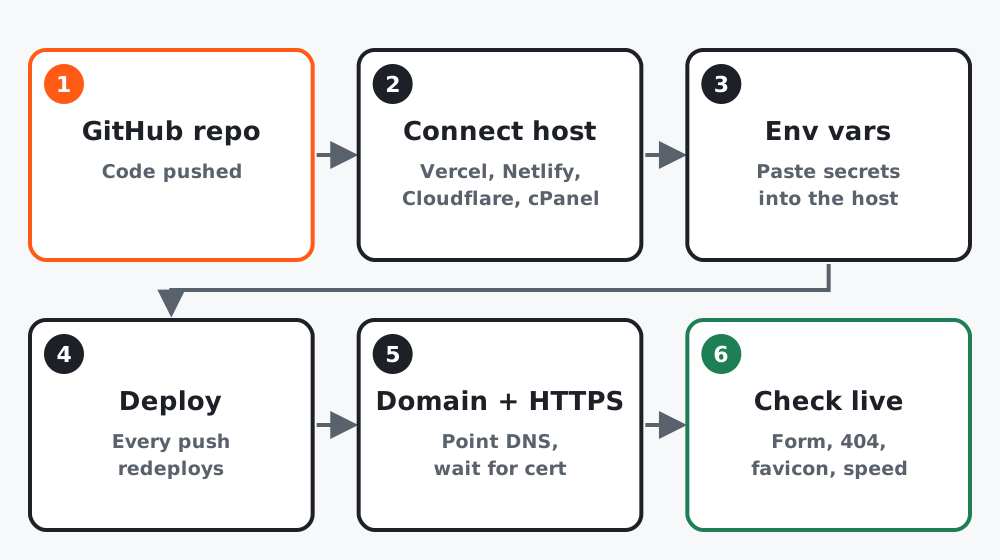 Figure 1. Six steps. Step 6 is where most “it works on my machine” problems show up.
Step 1: Pick a host by project type
| Your project | Host type | Examples | Cost to start |
|---|---|---|---|
| Static pages, forms via a third-party endpoint | Static or serverless host | Vercel, Netlify, Cloudflare Pages | Free |
| Needs its own always-on server or database | App platform | Render, Railway, Fly.io | Free tier or a few dollars a month |
| You already pay for shared hosting | FTP or Git deploy to cPanel | Any cPanel host | Already paid |
Our hosting guide compares plans and limits, and the domains guide covers where to buy a name. For the course project, a static host is the right answer.
Step 2: Prepare the project
Prepare this project to deploy on [host]. Make sure "npm run build"
works with no errors, add a section to README.md with the exact deploy
steps, and list every environment variable the host will need, by name,
without values.
Run npm run build yourself once. If it fails locally it will fail on the host, with a less helpful error.
Step 3: Connect and deploy
- Sign in to the host with your GitHub account.
- “New project”, pick your repository. The host usually detects the framework.
- Add the environment variables from step 2, pasting the values from your
.env. - Deploy. The first build takes a minute or two. You get a temporary URL.
From now on, every git push to the main branch redeploys. That is the whole pipeline.
Step 4: Domain and HTTPS
In the host: add your domain. It gives you one or two DNS records. At your domain registrar: add those records. Wait anywhere from minutes to a day. The host issues the HTTPS certificate automatically once DNS resolves. Do not pay for a certificate; free ones are standard.
Step 5: Test like a stranger
On your phone, on mobile data (not your Wi-Fi), at the real domain:
- Submit the form with a real email. Does the row appear?
- Open a wrong URL. Is there a 404 page, not a blank screen?
- Is the favicon there? Does the page title make sense in the tab?
- Does it load in under three seconds?
- Share the link in a chat app. Does a preview card appear?
Anything that fails: back to lesson 6’s routine, then push, then recheck.
Worked example
Course project on a static host: build passed locally, first deploy took 70 seconds, two environment variables added. Domain pointed with two records; HTTPS was live after about 20 minutes. The stranger test found the preview card missing. One prompt added the social-sharing tags. Afternoon total: two hours including waiting for DNS.
Common mistakes
- Forgetting the environment variables, so the form works locally and silently fails live.
- Testing only on Wi-Fi at your desk.
- Buying a domain at a host that makes it hard to move later. Buy the name at a registrar, point it at any host.
- Deploying from a branch instead of main, then wondering why pushes do nothing.
Checklist
-
npm run buildpasses locally - Live at a temporary URL, then at your domain with HTTPS
- Environment variables set on the host
- Stranger test passed on a phone